
Welcome, Team Manager!
Your company has invested in valuable training from High Tides Consulting, and you’ve been appointed to manage your team’s access. This guide explains how to use your dedicated Management Dashboard – a simple, web-based tool – to add your team members (Learners) and ensure they can access the courses included in your company’s purchase.
From the dashboard you will be able to:
- Create and manage teams in your organization.
- Add and remove members so they can access courses and discussion forums.
- View progress reports to see how your employees are doing on their learning path.
- Send broadcast and direct emails to update your members.
Remember, you can always email our support team at hello@hightidesconsulting.co if you have questions or need guidance.
Terminology
We use a structured system to help you manage licenses within your company. Let’s get familiar with some of the terms used in your dashboard and what they mean.
| Term | Brief Description |
|---|---|
| Organization | This is usually your company name and is the main container for all your employees. |
| Team | To facilitate managing large groups, organizations are structured into teams. We will create your main team for you. If you have a large amount of licenses, you create more teams to mange learners by department. For example, your organization could have an HR team and a Sales team. Note: In reports, ‘Teams’ are called ‘Groups’. |
| Team Leader | The individual appointed by your company to manage their team’s course access and track progress. There can be more than one Team Leader per team. All Team Leaders have access to the dashboard, but will only be able to manage their own team. The person that purchased the licenses will become the initial Team Leader. Different Teams can be assigned access to some or all of the courses your company purchased. |
| Seat / License | Permission granted for one individual within the company to access the courses assigned to their Team. The Team Leader will also use one seat. Licenses are called “Seats” in your dashboard and you will see Total Seats Used, Seats Remaining and Team Members per group. |
| Team Member | An employee within your company who will be taking the online courses. Depending on they team they are added to, they will have access to one or more courses. They will also be able to participate in forum discussions to support their learning experience. |
The Team Dashboard
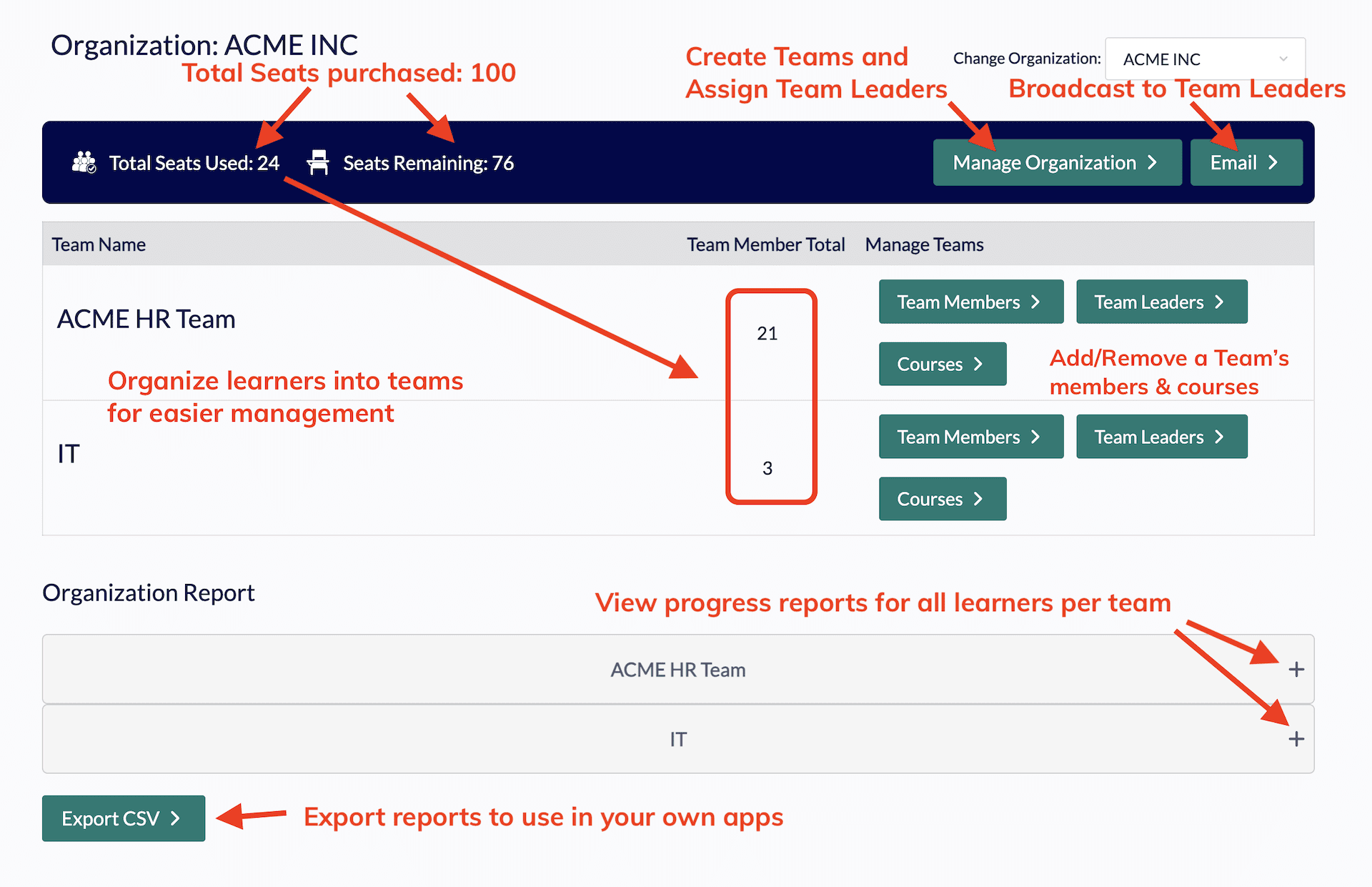
All Team Leaders have access to the Team Dashboard, which can be found in the top navigation menu.
Navigating Your Dashboard
Your Management Dashboard provides several tools:
Overview / Manage Team:
Shows your main Company Organization and allows managing or creating Departments/Teams within it (if desired). You will see how many seats (licenses) you have available and how many are already filled.
Add Team Members:
This is where you add your employees to the team.
Manage Courses:
Allows you to control which courses your team members can access. (Currently, the High Tides team will manage this for you.)
Reports:
Provides insights into your team’s course progress and activity.
Managing Your Team Members
Your company purchased a specific number of Seats. Each employee you add to the group uses one of these seats.
Adding Members One by One:
This is suitable for adding just a few people.
- Go to the ‘Add Team Members’ section of your dashboard.
- Fill in the form for each employee: First Name, Last Name, Email Address.
- You will need to create a unique Username and a starting Password for them. Make sure to communicate these details securely to the employee.
- Click ‘Save’.
- If an employee already has an account on the High Tides website (perhaps from a past course), look for a checkbox next to “Team member already exists?” Select it and search for their existing account by name or email to add them to your group.
Adding Multiple Members Quickly (Recommended for Bulk):
For larger teams, adding users individually is time-consuming. Using the CSV (Comma Separated Values) spreadsheet upload feature is much more efficient.
- In the ‘Add Team Members’ section, look for the ‘Import List’ button.
- Click the link to ‘Download CSV template’. This provides a spreadsheet file with the exact columns needed.
- Open the downloaded template file using spreadsheet software (like Microsoft Excel or Google Sheets).
- Carefully fill in the required information for each employee in the corresponding columns. This will include First Name, Last Name, Email Address, Username (you create this), and Password (you create this). Important: Usernames and emails must be unique.
- Save the completed file in CSV format.
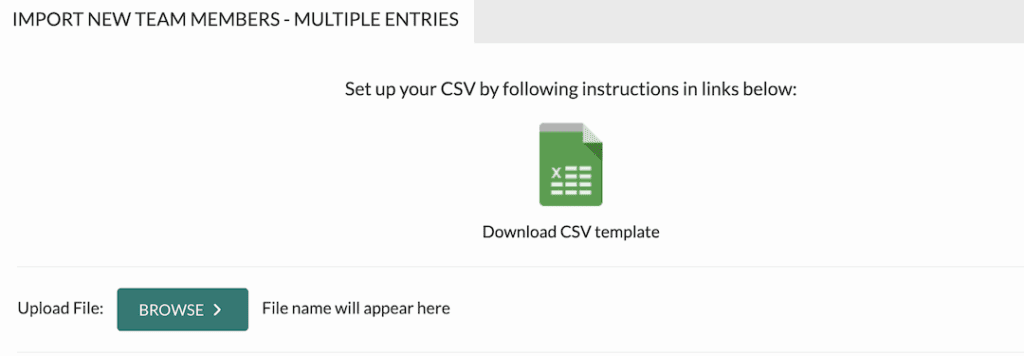
- Return to the import section on your dashboard. Click ‘Browse’ to choose your file.
- Select the CSV file you just saved from your computer.
- Click ‘Import’ to add all the listed employees to your group at once. They will each consume one Seat. Remember to securely share the login credentials (username and password you created) with each employee.
Removing Members:
If an employee leaves the company or no longer needs access, you should remove them from the group. Look for your list of team members under ‘Team Members’ > ‘Edit’. There will be an option next to each name to ‘Remove’ or ‘Delete’ them from the group.
Removing a member frees up their Seat, allowing you to add someone else if needed. Their user account will remain on the server.
Deleting a member will permanently remove them from the server.
Checking Your Team’s Learning Progress
Tracking your team’s engagement and completion is essential.
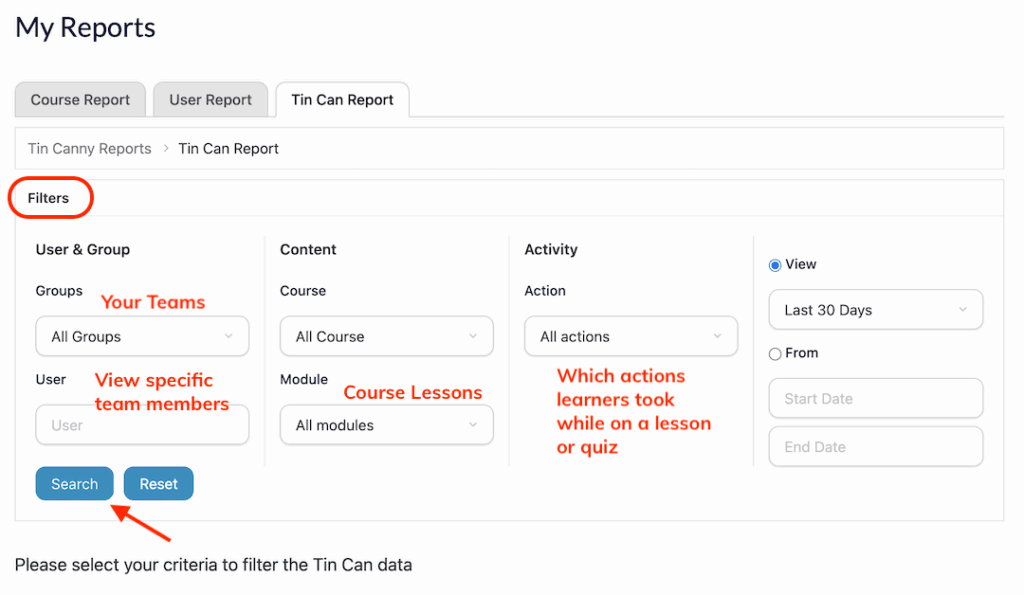
- Look for a ‘My Reports’ section on your dashboard.
- Explore the available reports. You will be able to see data such as:
- Which team members have enrolled in courses.
- Their progress percentage within each course.
- Quiz scores.
- Course completion dates.
The specific reports available provide valuable oversight of your team’s learning journey.
You will find three reporting tabs, each offering different statistics. The Course and User Report tabs allow you to filter details The ‘Tin Can’ Report contains all the details gathered during the learner’s journey.
NOTE: Some reports refer to ‘Groups’, which is the same as ‘Teams’.
Managing Teams (Departments) within Your Company
For larger organizations, it might be useful to divide your main Company Team into smaller Departments or Teams (e.g., Sales Team, HR Team). You can do so in ‘Manage Organization’ > ‘Add Team’ on your dashboard.
- Creating Teams allows you to assign specific sets of courses (from the overall pool available to your Company Group) and specific members to each Team.
- You can also designate ‘Team Leaders’ for these sub-teams, further delegating management tasks.
- This hierarchical structure provides more granular control over access and reporting within your organization. Discuss with the High Tides Administrator if you would like to learn more about designating Team Leaders.
Getting More Access Licenses
If your team grows or you need to provide training to more employees than initially purchased, you will need additional Seats.
- Contact your primary point of contact at High Tides Consulting to discuss purchasing more spots.
- You will need to login to the High Tides Consulting store with the same account that you purchased your initial licenses with. Then visit the special link for the courses you want more seats for. Choose how many seats/licenses you want to add and follow through with the purchase. Your additional seats will show up in the dashboard.
Help & Support
This section provides answers to common questions and guidance on who to contact for assistance.
Common Questions
- Q: What if I (Team Manager or Learner) forget my password?
- A: Use the ‘Forgot Password?’ or ‘Lost your password?’ link found on the website’s login page. Enter your email address, and you will receive instructions to reset it.
- Q: An employee left the company. How do I give their Access Pass to a new employee?
- A: As the Team Manager, log into your Management Dashboard. Find the departing employee in your team list and use the ‘Delete’ option. This frees up their Access Pass. Then, use the ‘Add Team Members’ function (either individually or via CSV) to add the new employee. See the “Managing Team Members” section for detailed steps.
- Q: Can I assign Course X to only Person A, and Course Y to Person B within the same team?
- A: Typically, no. Course access managed via the Team Manager dashboard is applied to the entire team. All members in that team get access to all ‘Active Courses’ for that team. If you need different course assignments for different individuals, the best approach is often to create separate Teams for those individuals. Discuss this possibility with the High Tides Course Administrator if you need assistance.
- Q: Where can I see if my team members have completed their courses?
- A: As the Team Manager, check the ‘Reports’ section of your Management Dashboard. It will provide details on course progress and completion status for each member of your team.
Who to Contact
For Team Managers:
If you encounter issues logging in, using your Management Dashboard, adding users, assigning courses, or understanding reports, your first point of contact should typically be the person within your own company who arranged the training with High Tides Consulting.
If instructed otherwise, or if your internal contact cannot assist, reach out directly to High Tides Consulting via the contact information provided to you or use our general contact email: hello@hightidesconsulting.co.